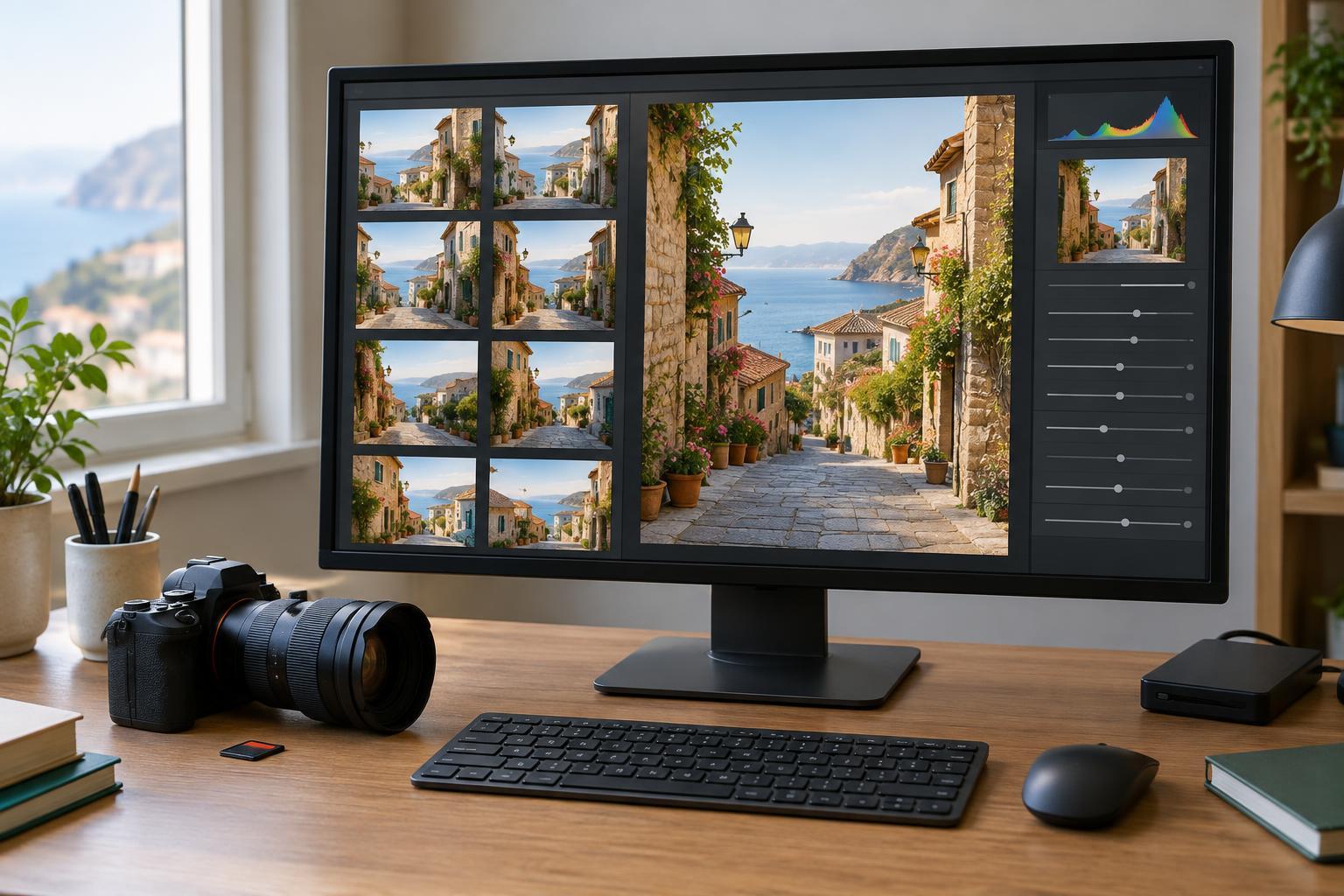
Know which problem you are correcting
Lens distortion changes the shape of the image. Barrel distortion makes straight lines near the frame edges bow outward; pincushion distortion pulls them inward. It is easiest to spot in buildings, door frames, tiled walls, and horizons. This is different from perspective convergence: if you tilt the camera upward, vertical lines may appear to lean together even with a well-corrected lens. A distortion slider will not fully solve that camera-angle effect.
Chromatic aberration shows up as unwanted color around edges. Lateral chromatic aberration often appears as red, green, blue, or cyan fringes near the outer parts of a frame, especially along high-contrast boundaries. Purple or green fringing can also appear around bright highlights or out-of-focus edges and may need a separate defringe control. At a comfortable viewing size, these effects might be invisible. Before correcting them, check whether they are actually distracting in the photo you intend to share.
Use distortion correction when shape matters
A lens-profile correction is a useful starting point for architecture, interiors, product photographs, and other images where viewers expect straight edges to look straight. Many editors can read lens information from a file and apply a matching profile. If the editor cannot identify the lens, choose a verified matching profile or use a manual distortion control while watching a reliable line near the edge of the frame. Do not use a roughly similar profile just because it makes one part of the image look better.
Correction can stretch parts of the image and remove pixels around the border, so inspect the whole frame after enabling it. A railing may look straighter while a person near the edge looks wider, or an important detail may be cropped away. For a candid portrait, travel scene, or intentionally dynamic wide-angle composition, leaving some distortion can be the better choice. The goal is not a perfectly neutral file; it is a believable result that serves the photograph.
Remove color fringes where they draw attention
Chromatic aberration correction is often worth trying on tree branches against a bright sky, dark window frames against daylight, or small reflective details. Start with the editor’s standard chromatic aberration control, then zoom in on a few high-contrast edges near the corners. Compare the corrected and uncorrected versions. If a thin colored outline disappears without changing the subject’s real colors, the correction is doing useful work.
For stubborn purple or green fringes, use defringe controls conservatively. Increasing their strength or widening the affected color range too far can remove genuine color from flowers, clothing, or lights. Check both the troublesome edge and another area containing similar colors. Some fringing around bright, blurred details cannot be removed cleanly; a slight remaining fringe may look more natural than a dull gray edge.
Fit corrections into your editing order
For a RAW workflow, consider optical corrections early, before committing to a crop or detailed local edits. Turning on distortion correction later may change the frame boundaries and move features you carefully aligned. After applying it, straighten or adjust perspective as needed, then crop. Chromatic aberration correction can also happen early, although its effect is often easiest to judge after making a basic exposure adjustment that lets you see bright and dark edges clearly.
Defaults can save time, but they deserve a quick review. An editor may apply part of a lens correction automatically, and a camera may embed correction information in its files. Check what is already active before adding another adjustment. At the end of the edit, inspect the photograph both fitted to the screen and zoomed in: the full view reveals awkward stretching or cropping, while the close view reveals remaining fringes. Judge the exported image too if resizing or sharpening changes how edges appear.
Try a simple before-and-after exercise
Choose one photograph with a straight line near a corner and another with dark details against a bright background. Make a virtual copy of each, or use your editor’s before-and-after view. On the first image, toggle distortion correction and note what happens to the line, the frame edges, and any people nearby. On the second, toggle chromatic aberration correction while inspecting the outer parts of the image, then check whether real colors elsewhere remain intact.
Finally, view both images at the size you would normally share them. If a correction improves the photograph without creating a more noticeable problem, keep it. If you cannot see a meaningful difference, there is no need to force one. This habit turns lens corrections from an automatic checkbox into a considered part of your editing workflow.