Know What You Need to Keep
Your original image files are the foundation of a photo library. Keep the RAW files or camera JPEGs you want to preserve, even if you have finished versions elsewhere. An exported JPEG is useful for sharing, but it may not retain the resolution or editing flexibility of the original.
Edits can live in several places. A photo editor may store adjustments, ratings, keywords, and album organization in a catalog or library database. Some applications also write settings to sidecar files next to the originals. Layered files created in a pixel editor may contain work that neither the original nor a final export can reproduce. Make a short inventory of the folders and files your own workflow uses; backing up only the folder labeled “Photos” might miss important work.
Keep selected exports if recreating them would take time or if they represent a particular delivery, such as a finished print file. You do not necessarily need to preserve every temporary preview or duplicate export. The goal is to know which files are irreplaceable and which you could reasonably make again.
Give Every Shoot a Clear Path Home
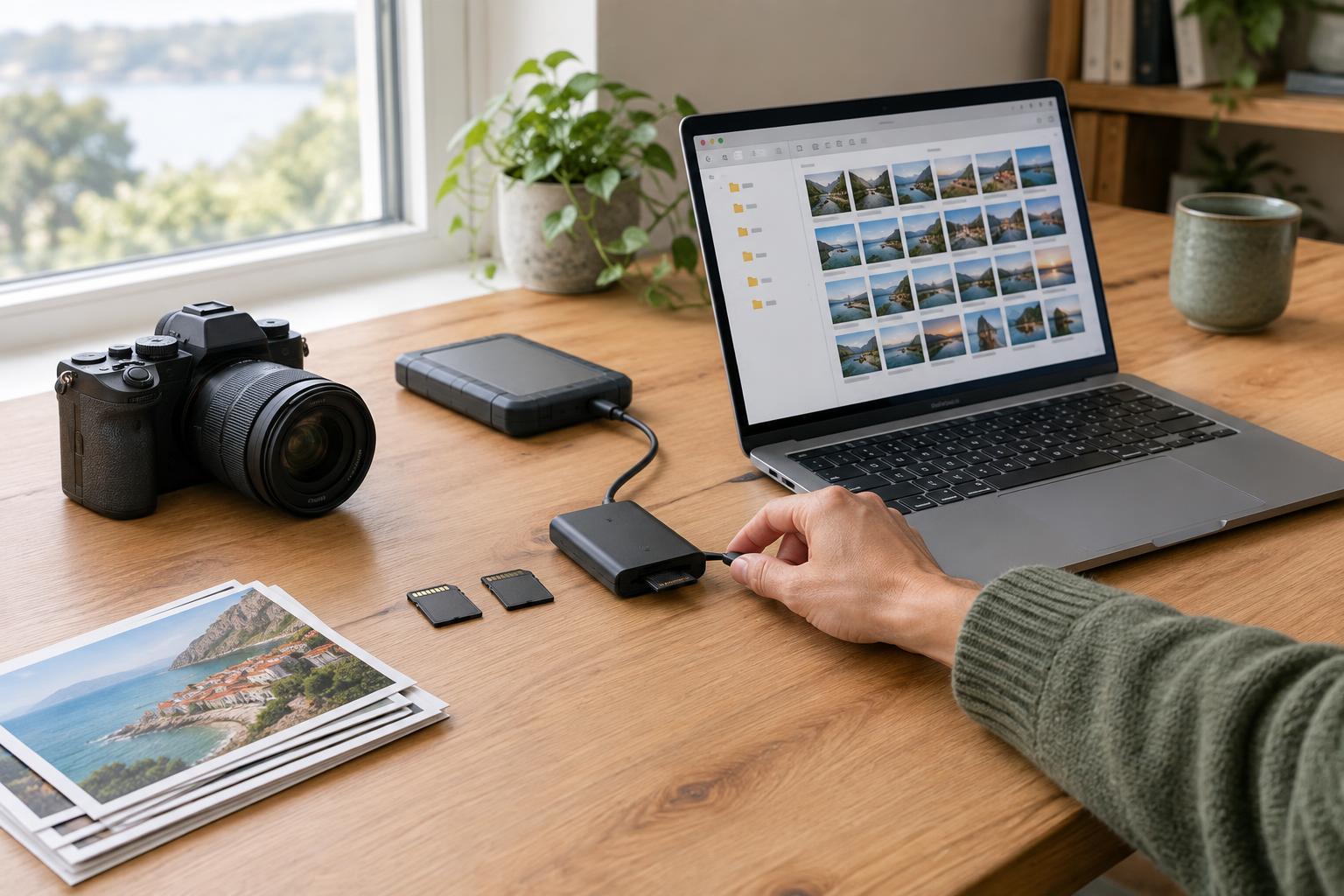
A repeatable import routine makes backups simpler. Choose one main location for your photo library and a folder structure you can understand later, such as a shoot name within a year folder. On import, confirm that the expected number of files arrived and open a few images before clearing the card. A memory card is useful as a temporary extra copy, but it is not a long-term archive.
If your editing application manages a catalog, learn where that catalog is stored. It may be separate from the originals, even when the images appear together on screen. Avoid moving folders outside the application without checking how to reconnect them; otherwise, the catalog can lose track of the files while both still exist.
For an exercise, trace one recent image from card to original file, catalog entry, edited file, and export. Write down each location. Any item you cannot find is a clue that your backup plan needs attention.
Use More Than One Independent Copy
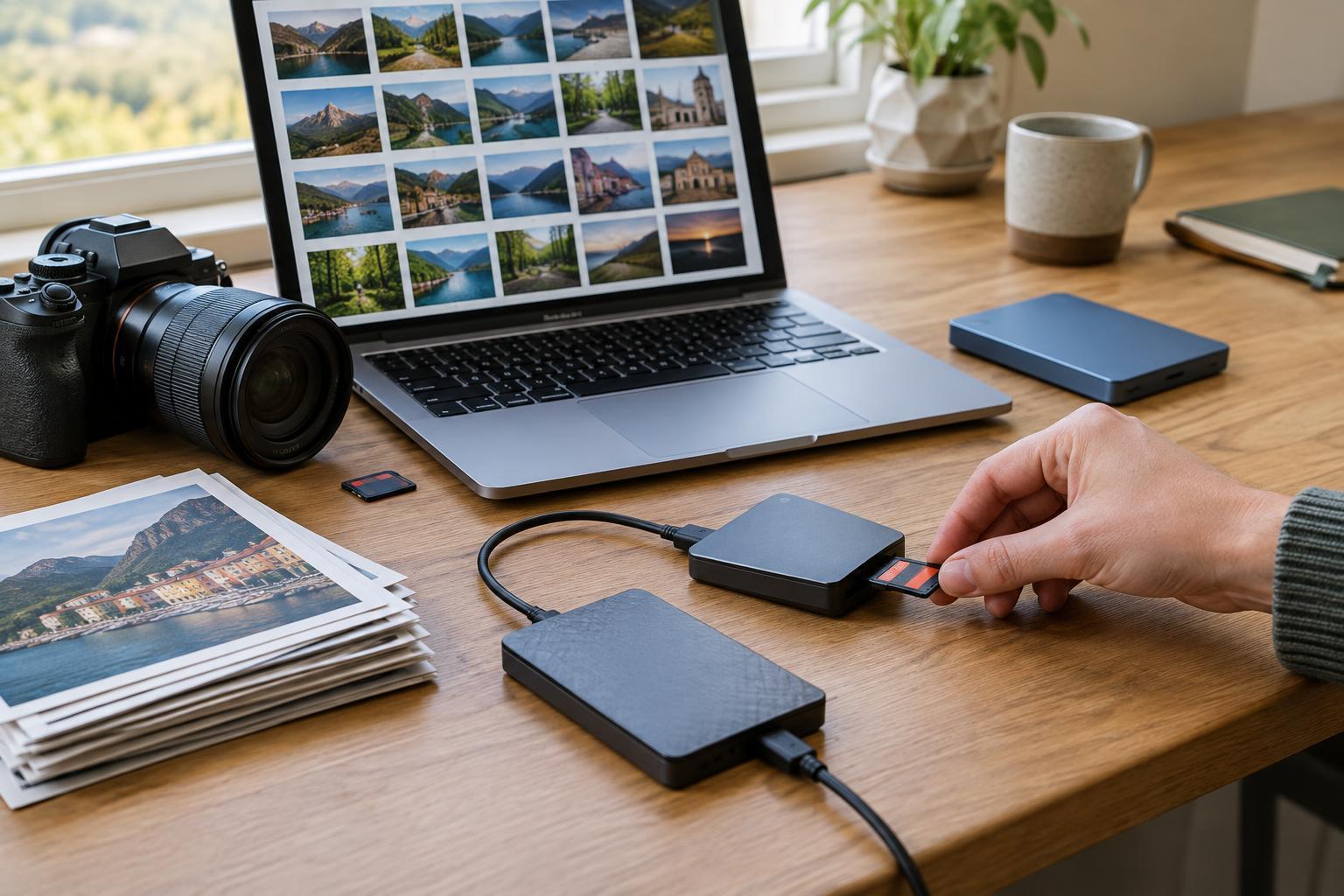
A practical starting point is a working library plus a backup on another drive and a further copy kept in a different location, such as an off-site drive or a cloud backup service. The copies should include your originals and any catalogs, sidecars, and layered files you rely on. An external drive connected to the same computer is convenient for quick recovery; a separate-location copy helps if something happens to the computer and nearby drive together.
A sync service can be helpful, but synchronization and backup are not always the same thing. A mistaken deletion or damaged file may propagate to every synced device. Look for a way to recover older versions or deleted files, and understand how long they remain available. Likewise, a second folder on the same drive is not protection against drive failure.
Choose a schedule you can maintain. You might back up after each import or editing session, then check periodically that the separate-location copy is up to date. If you work while traveling, consider keeping the card until you have confirmed another copy of the files, and avoid treating a single laptop as the only home for a trip’s photos.
Back Up the Catalog Without Interrupting It
Catalogs deserve particular care because they may contain months or years of editing and organization. If your application offers a catalog backup feature, use its recommended method and save the resulting backup somewhere other than the working drive. Some catalog databases should not be copied while the application is actively writing to them; consult the application’s guidance before setting up an automated copy.
Keep backup copies that span more than just the latest session when storage permits. An older version may help if you discover a mistake only after a newer backup has replaced the previous one. Also check whether the catalog backup includes previews, presets, or original images—those are often stored separately.
A simple written note can save confusion during recovery. Record where the working catalog and originals live, where their backups go, and whether your editor depends on sidecars or separate preset files. Store the note somewhere you could access without the main computer.
Test a Restore Before You Need One
A backup is most useful when you can actually retrieve and open its contents. Occasionally restore a small sample to a different folder: one original, any associated sidecar or layered file, and a catalog backup if your software supports testing one safely. Check that the image opens and that the edits you expected are present. Do not overwrite your working library during a practice restore.
If the test reveals missing files, fix the process rather than relying on memory next time. Add the overlooked folder to your backup selection, change where exports are saved, or make the backup step part of your import routine. A dependable system does not have to be elaborate. It needs to cover the work you value, make copies independently, and let you find your way back to a usable photo library.