Two routes to a soft background
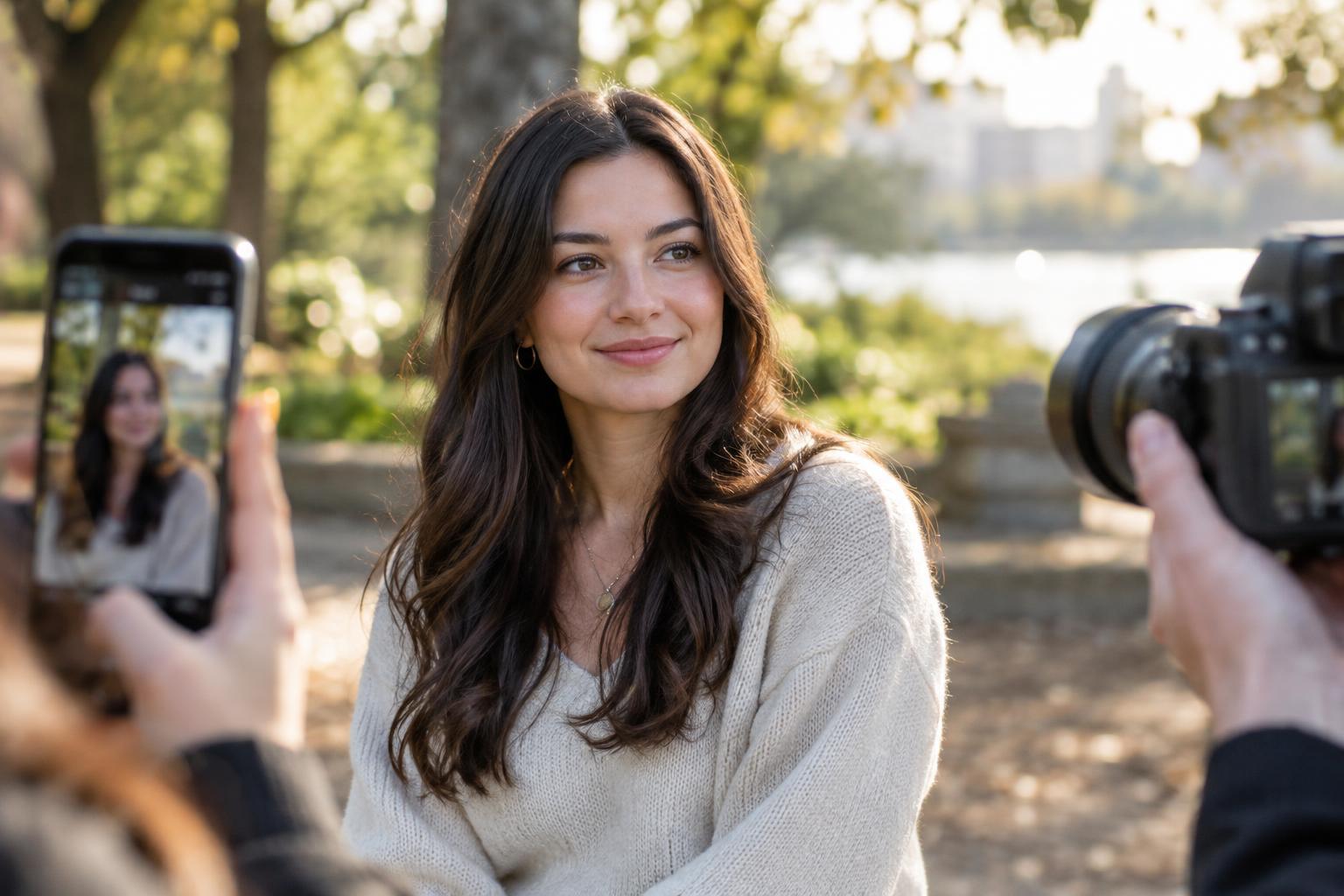
A portrait with a sharp face and a soft background can look as though the subject has been separated from the scene. A camera lens can produce that softness optically: light from objects outside the focused distance spreads into blurred shapes on the sensor. A phone’s portrait mode usually takes a different route. It estimates which parts of the image belong to the subject and applies blur to areas it identifies as background.
Neither approach automatically makes a better photograph. Background blur can hide distractions, but it cannot fix awkward light, an expression you missed, or a distracting object that remains beside the face. Understanding where the blur comes from helps you decide when to use it and when to leave the surroundings visible.
How a lens creates optical blur
A lens focuses light from one distance onto the sensor. Objects closer or farther away are not rendered as precisely at that focus setting. Whether their softness is noticeable depends on several factors working together, including aperture, subject distance, background distance and the framing you choose. A wider aperture can increase visible background blur, but an f-number alone does not tell you how a finished portrait will look.
Distance is especially useful because you can change it without changing equipment. When you move closer to your subject, the range that appears sharp often becomes shallower. When your subject stands well away from a wall or a row of trees, that background is more likely to look soft than it would if the subject stood directly against it. Refocusing as you move matters: the eyes can slip out of focus even while the background looks pleasantly blurred.
Sensor size and lens choice also affect what is practical. A camera with a suitable lens may give you strong optical separation while keeping a comfortable distance from your subject. But a camera can also make a portrait with a detailed background, and a phone camera can show natural optical blur when it focuses close enough. The device name alone does not determine the look.
What phone portrait mode adds
Portrait mode tries to map the scene by estimating depth and distinguishing the subject from what lies behind it. Depending on the phone and scene, it may use information from multiple cameras, focus cues, image recognition or a combination of methods. Software then softens the selected background. The displayed aperture setting in a portrait-mode app often controls the strength of that simulated blur; it is not necessarily changing the physical opening of the phone’s lens.
This method can be useful when the phone’s natural depth of field keeps too much of the scene sharp. It also has a characteristic weakness: the boundary between subject and background is an estimate. Look closely at flyaway hair, glasses, fingers or gaps between an arm and the body. Parts of the subject may be blurred, or small pieces of background may remain oddly crisp. Busy textures and similar colors on both sides of an edge can make those errors more visible.
Optical blur has limitations, too. A wide aperture can leave one eye softer than the other if the face is turned, and bright points in the background may become prominent blurred shapes rather than disappear. The useful question is not which method is universally more authentic. It is whether the blur supports this particular portrait.
Make the comparison fair
If you compare a phone portrait with a camera portrait, keep your position and framing in mind. Standing in the same place preserves the relationship between the subject’s face and the background. Moving closer to fill the frame changes that relationship and can make nearby features appear more prominent. Changing lenses or using a different phone camera may also change how much of the surroundings fits in the frame. Compare the whole image, not just the softness.
Try photographing someone in open shade with a background several steps behind them. First make a standard phone photo, then a portrait-mode version without moving. If you have a camera, make a portrait from a similar position and adjust your framing as best you can. Check the eyes, hair and outline of the shoulders at a larger viewing size. Then repeat with the subject close to a wall. You will see how background distance affects the lens image and how a harder-to-separate scene may challenge the phone’s depth estimate.
Choose blur to serve the portrait
Before increasing blur, inspect the background itself. A small shift left or right might place a clean patch of color behind the head. Asking your subject to step away from a busy wall may help more than selecting the strongest portrait-mode effect or the widest available aperture. If the setting tells part of the story—a workshop, a street or a family kitchen—keeping some detail can make the image more meaningful.
When you want a softer look, start with moderate blur and check the edges before saving or editing further. On a camera, focus carefully on the nearest eye and review the result rather than assuming a wide aperture will work. On a phone, take a standard frame as well as a portrait-mode frame when you can. That gives you a simple fallback if the simulated blur cuts through hair, clothing or an important detail in the scene.