What non-destructive editing means
Non-destructive editing lets you change how a photo looks without permanently changing the original image data. You can brighten a portrait, adjust its color, or try a tighter crop, then return later and revise those choices. Instead of treating the first edit as final, you keep the source photo available for a different interpretation.
This matters even when you are happy with an edit. Your taste may change, you may need another crop for a print, or you may notice that a shadow was lifted too far. A reversible workflow gives you room to reconsider. It does not mean every action in every application is automatically reversible, though: saving over the only copy of a file can still erase a useful starting point.
Protect the source before you begin
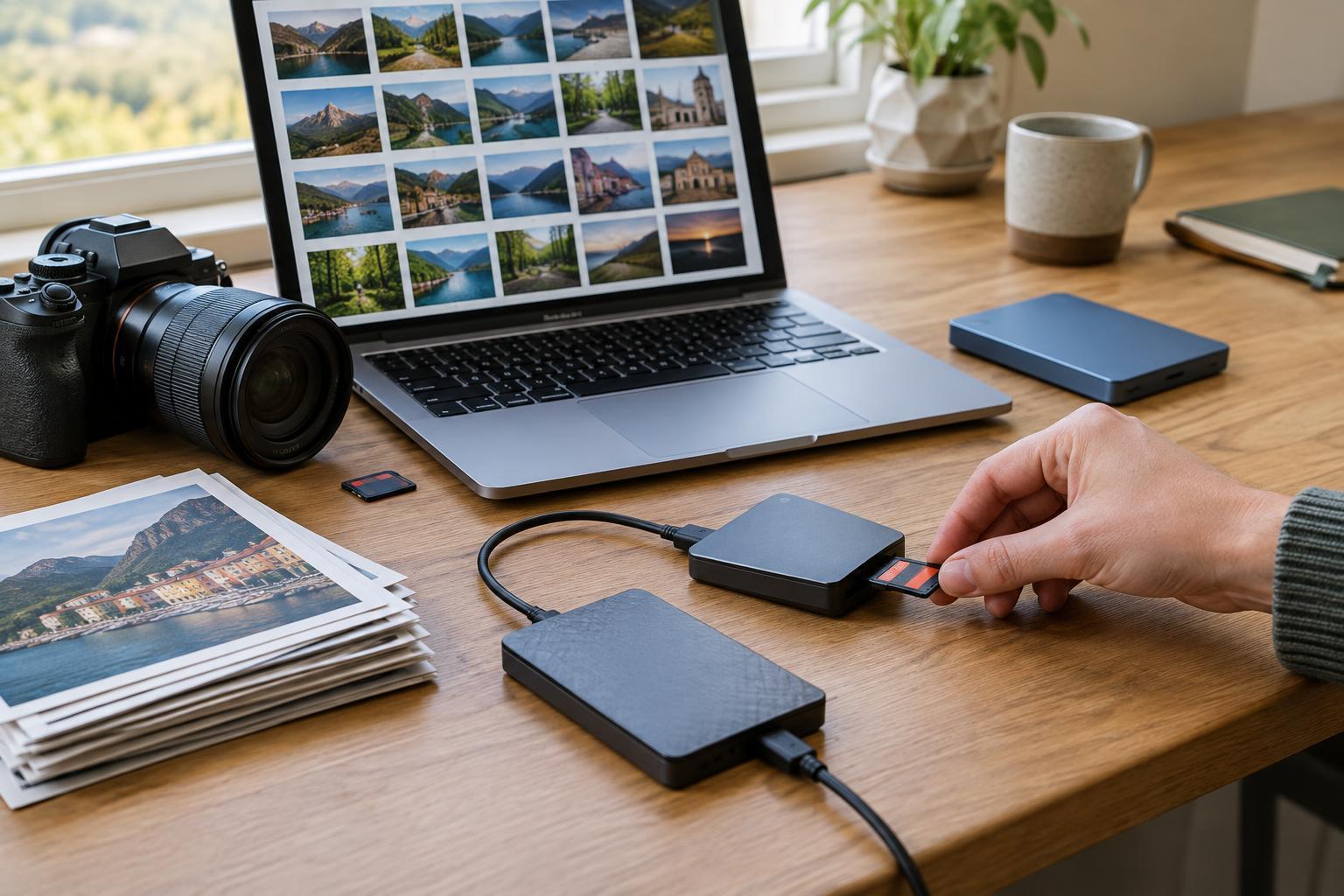
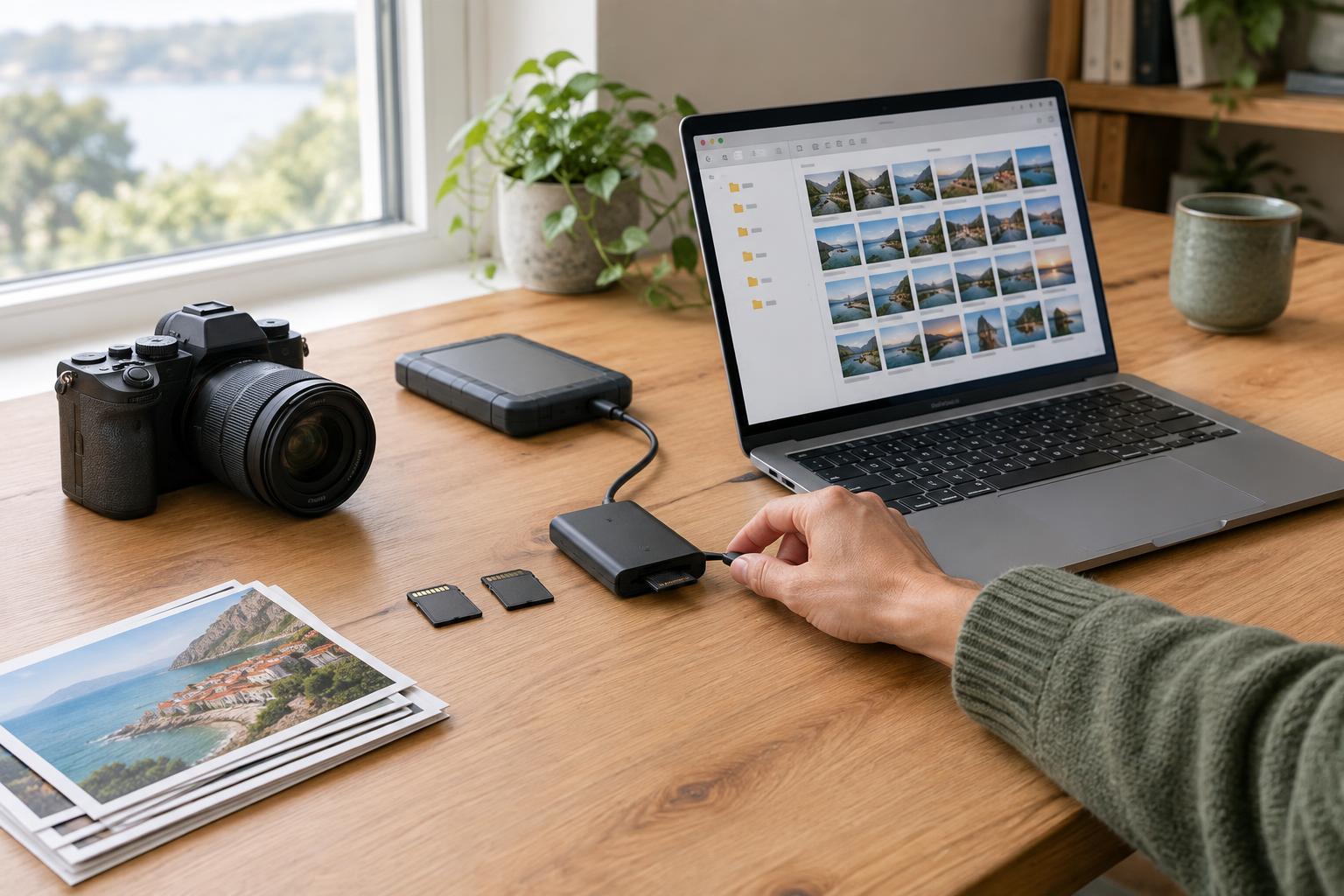
Start by copying photos from your camera or phone into a clearly named folder. Check that the files are present and open correctly before clearing the memory card or deleting them from the device. Keep an additional copy in a separate location, such as another drive or a backup service. A backup protects against loss; non-destructive editing protects against unwanted changes. You need both habits.
Choose a simple folder and naming system you can maintain. For example, a folder named for a trip or shoot can contain an Originals folder and an Exports folder. Avoid renaming or moving source files outside your editing application after importing them into a catalog, because the catalog may then lose track of their location. If you do reorganize files, use the application’s own file-management tools when available.
Choose editing methods you can revisit
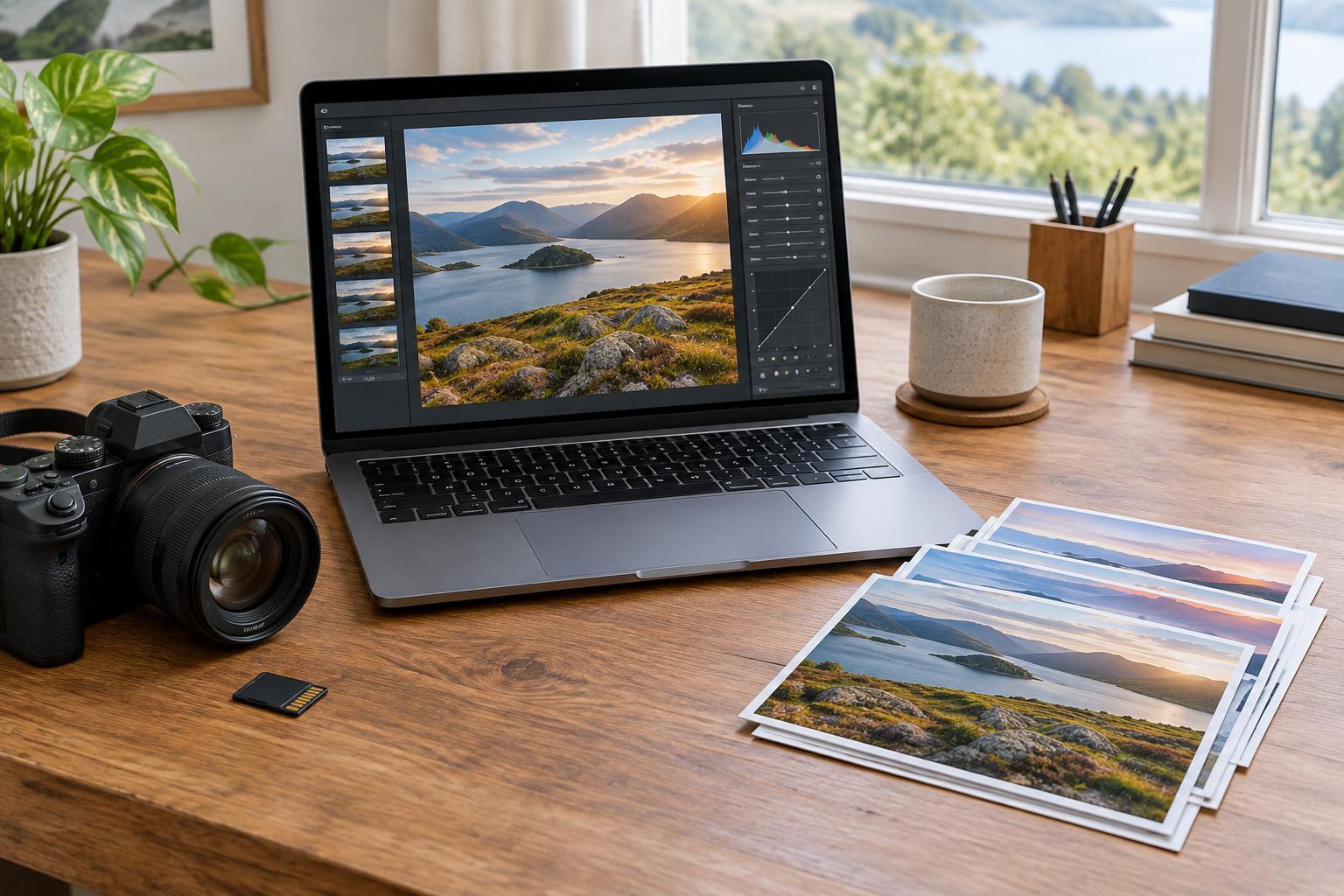
Many photo editors record adjustments as instructions rather than rewriting the source file. Exposure, white balance, color, and crop settings may be stored in a catalog, a sidecar file, or an application-specific project. Check where your editor saves those instructions and include that location in your backups. An untouched original is valuable, but so is the record of the work you have done.
If you use a pixel editor, work on a duplicate file and use adjustment layers, masks, or other reversible tools where possible. A mask, for example, can limit a brightness change to a face without permanently erasing the rest of the image. Some operations still require altering pixels; perform them on a separate layer or duplicate so you can compare the result with your starting point.
RAW files often give you more flexibility for adjusting exposure and color than a finished JPEG, but you can use a non-destructive workflow with either format. The essential choice is not a particular file type or brand of software. It is keeping the original intact while saving your edits somewhere you can reopen and revise them.
Use versions instead of overwriting decisions
One photo may serve several purposes. A wide landscape crop can suit a personal archive, while a vertical crop works better in a portrait-oriented layout. Rather than repeatedly changing one finished file, create separate versions in your editor or save clearly named working copies. Give each version a purpose, such as “warm color,” “black and white,” or “square crop,” so the choices remain easy to understand.
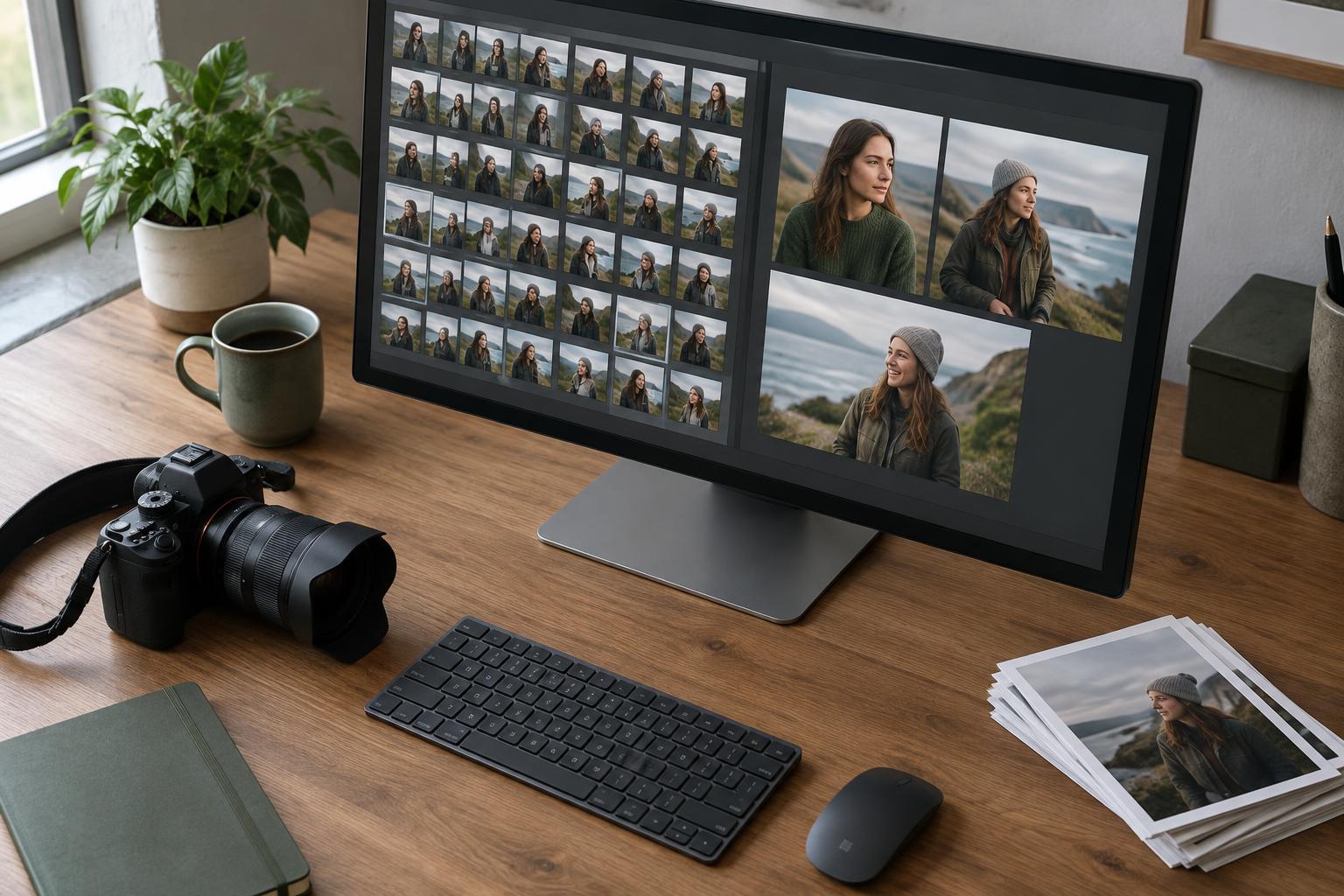
Before making a major change, compare the current edit with the original. Look at important details at a useful viewing size, then step back and judge the whole image. Is the subject still clear? Do the colors fit the scene? If an adjustment improves one area but harms another, reduce it or apply it selectively. The ability to reverse a decision is most useful when you pause to evaluate it.
Export a finished photo without losing your work
Think of an export as a copy made for a specific use, not as a replacement for your source or editable project. Choose dimensions, file format, and compression to suit where the image will go. A smaller JPEG may be convenient for sharing, while a larger export may be appropriate when more detail is needed. Keep exports in a separate folder so they do not become confused with originals.
For practice, choose one photo and make two edits: a natural-looking version and a more stylized version. Return to each after a break, change the crop or color, and export both. Then confirm that you can still open the untouched original and the editable versions. This short exercise tests the entire workflow, from protected source file to revisable edit to finished copy.