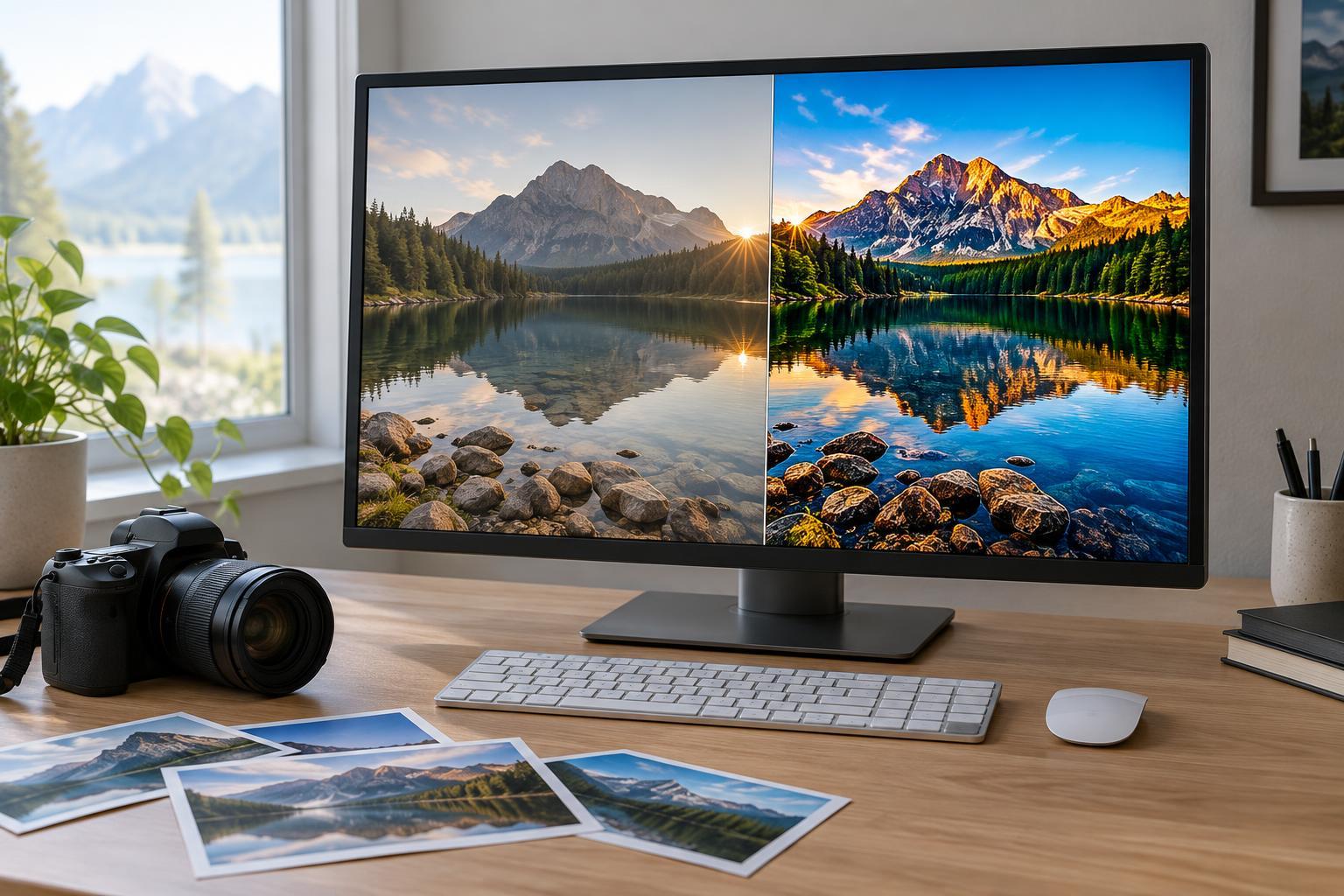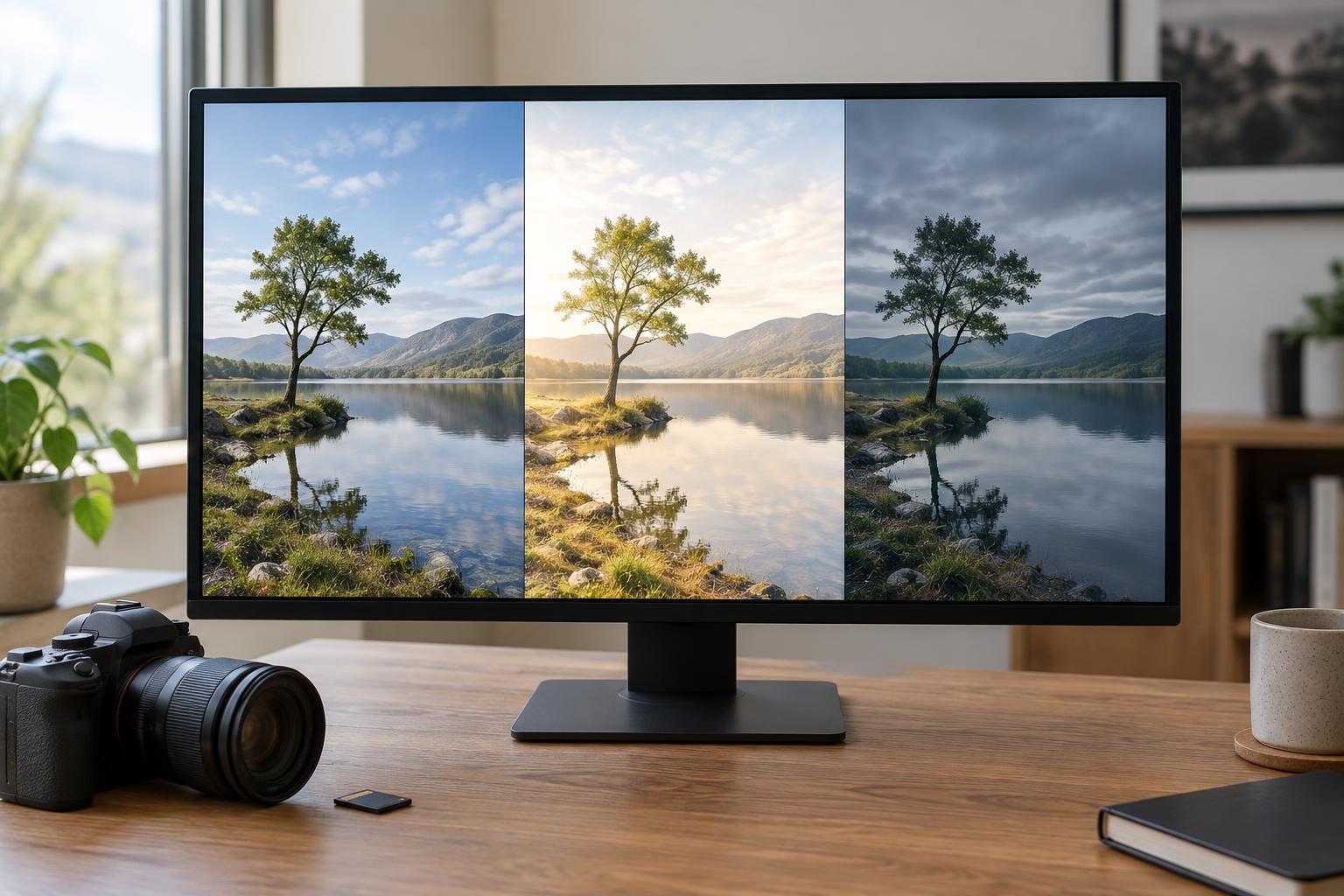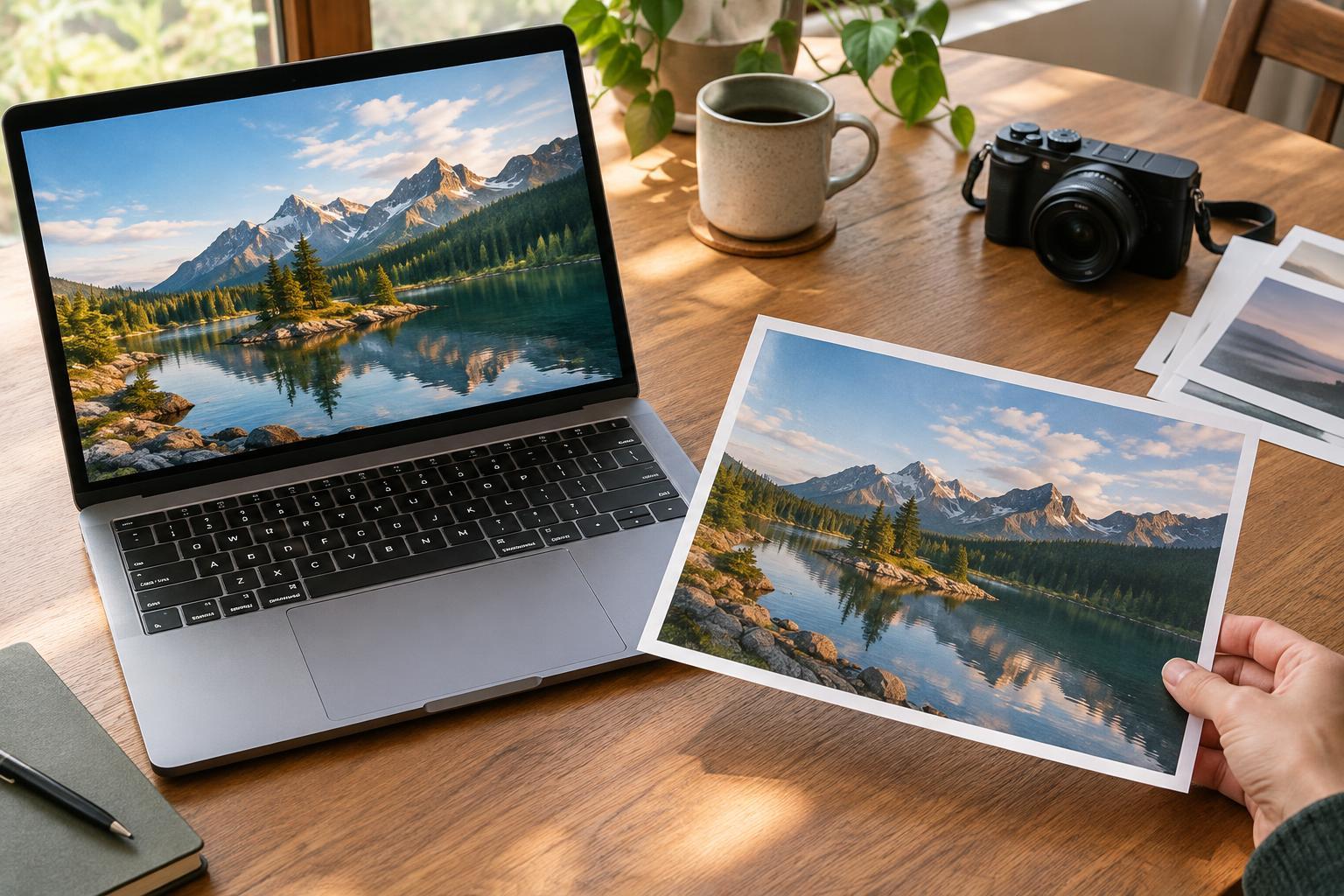
Start with the destination, not the export preset
A web image and a print may begin with the same edit, but they have different jobs. On a website, the file needs to display at the intended size without adding unnecessary download weight. For print, it needs enough pixels for the physical dimensions and a color workflow the printer can interpret. Instead of exporting one “high-quality” file for everything, decide where the photo will appear, how large it will appear, and who will handle the final output.
Keep your edited original or master file separate from delivery copies. Exporting a smaller JPEG does not improve the original, and repeatedly opening and saving that JPEG can introduce avoidable compression. A useful folder structure distinguishes web exports from print exports and includes the intended use in each filename. That small habit makes it easier to find the right version later, especially when a landscape crop for a page header differs from a crop prepared for a frame.
Size web images in pixels
For the web, pixel dimensions matter more than a file’s pixels-per-inch (PPI) label. A 1600-pixel-wide image remains 1600 pixels wide on screen whether its metadata says 72 PPI or 300 PPI. Find out how wide the image will actually be displayed, then export enough pixels to keep it crisp on the devices you expect to serve. If your publishing system generates responsive versions from an upload, check its recommended upload size rather than making every image as large as your camera file.
Crop before resizing so the final composition fits its placement. A wide banner, square thumbnail, and vertical story image may each need a different crop. For ordinary photographs, JPEG is a dependable default; WebP or AVIF can be useful when your site and workflow support them. PNG is better suited to graphics or images that require transparency, since it often makes photographic files larger than necessary. Use a quality setting that preserves important detail without keeping more data than the image needs, and inspect the exported file at its intended display size.
Calculate print size from the pixels you have
Print planning starts with the final paper size. Divide the image’s pixel width and height by the desired print width and height in inches to see the effective PPI. For example, a 3600 × 2400-pixel image printed at 12 × 8 inches has 300 pixels per inch in both directions. That is a practical target for many close-viewed photo prints, not a universal pass-or-fail rule. Larger prints viewed from farther away may look good at a lower PPI, while a small print intended for close inspection may reveal fine detail more readily.
Check the dimensions after cropping: trimming a photo can remove a substantial share of its pixels. If the remaining file is too small, modest upscaling may help with a particular print process, but it cannot restore detail that was never captured. Ask the print provider for its preferred dimensions and file type before exporting. A high-quality JPEG is often accepted, while some printers may request a TIFF or another specific format. Use the provider’s requirements rather than assuming the largest possible file is always the best one.
Keep color predictable
Color differences often come from mismatched profiles and display conditions rather than a single wrong slider in the edit. For web delivery, converting to sRGB and embedding the profile is a sensible default because it gives browsers and other software a clear description of the file’s colors. An embedded profile is more useful than simply renaming a file or assigning a different profile without converting its colors. If your editing application offers both commands, choose conversion for a delivery copy while leaving the master unchanged.
For print, follow the printer’s color instructions. Some services want an sRGB file and manage the conversion themselves; others provide an ICC profile for soft proofing or specify a different delivery space. Soft proofing can preview, within your display’s limits, how a paper-and-printer combination may affect saturated colors and dark tones. It is a guide, not a guarantee: screen brightness, ambient light, and paper surface all influence what you perceive. Avoid applying your own printer conversion if the service asks to manage color on its end.
Finish with output sharpening and a quick check
Sharpening should match the exported size and medium. A web image reduced from a large original may benefit from gentle sharpening after resizing; too much can create bright edges or make skin and fine textures look brittle. Print sharpening may need a different treatment because ink and paper render detail differently from a lit screen. If your software offers output-sharpening choices, select the one that matches the destination and paper type, then inspect a test print when the result matters.
Before delivery, open the exported file rather than relying only on the editing preview. Confirm the crop, pixel dimensions, format, embedded profile, and filename. Look for compression artifacts in smooth skies or around fine edges, and check that print dimensions match the order. A simple workflow is to export a web copy, verify it at display size, then return to the master for a separate print export. Saving those settings as distinct presets makes future exports faster without treating either preset as a substitute for a final check.